Start here
A tour of the five tabs
Sessions, Skills, +, Review and Settings, and what each one is for.
The floating bar at the bottom has five stops. The + in the middle is the only way to start a new log; the other four are places to look.
Good to know
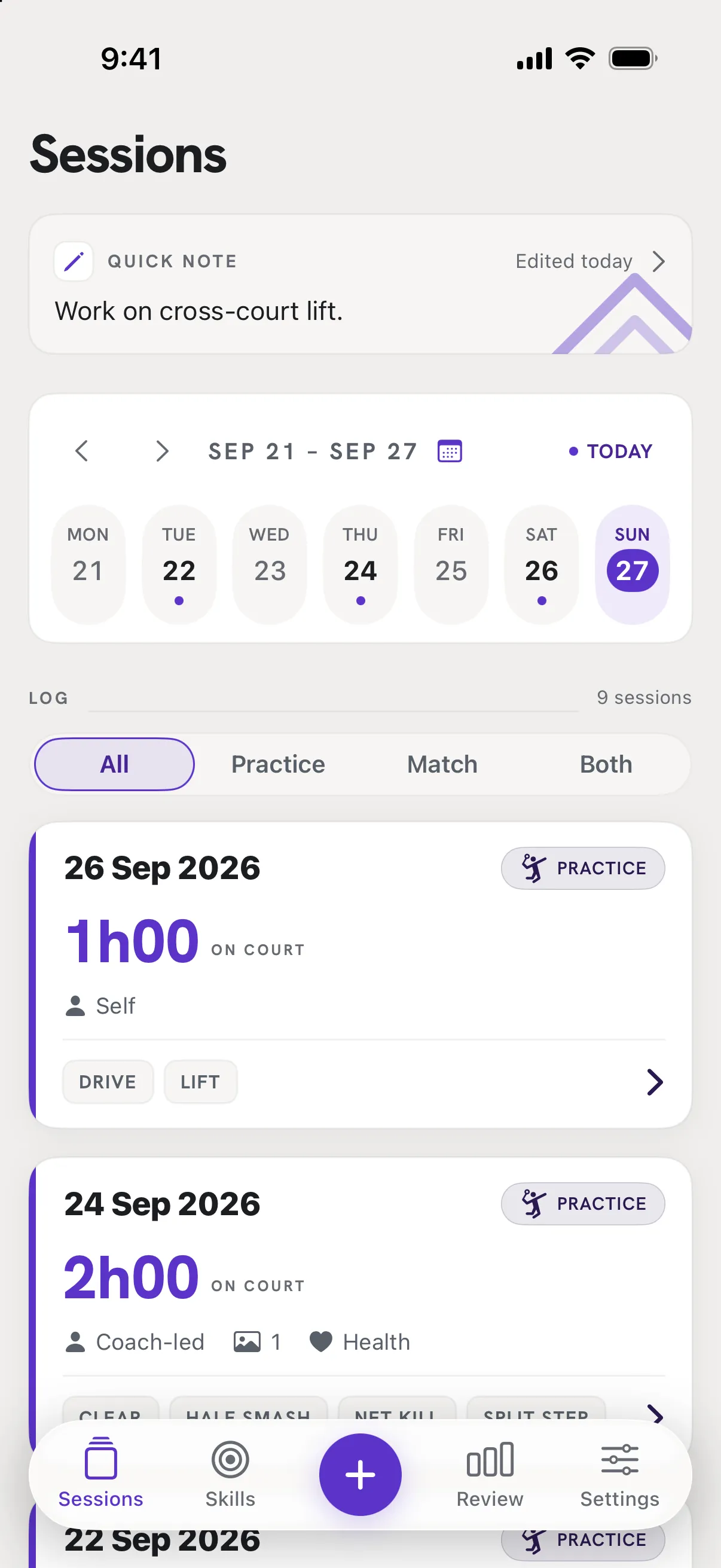
- Sessions
- Your log, newest first, with a week strip at the top to jump between days and a filter for All, Practice, Match or Both. Tap a session to open it. The card at the top holds your name, photo and a quick note to yourself.
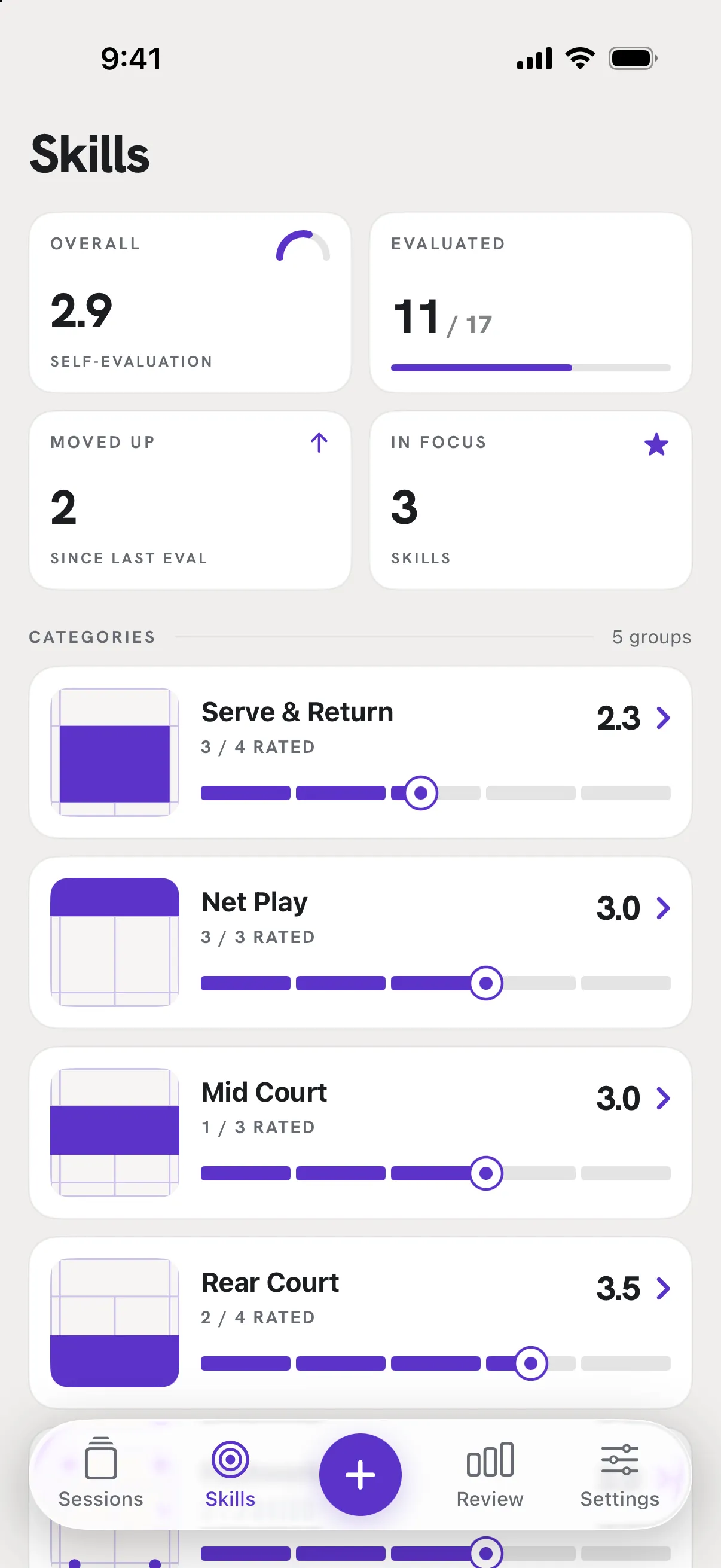
- Skills
- Your game in five areas - Serve & Return, Net Play, Mid Court, Rear Court, Footwork. Rate each skill from 1 to 5, star up to three to keep in focus, and watch the dashboard tiles move.
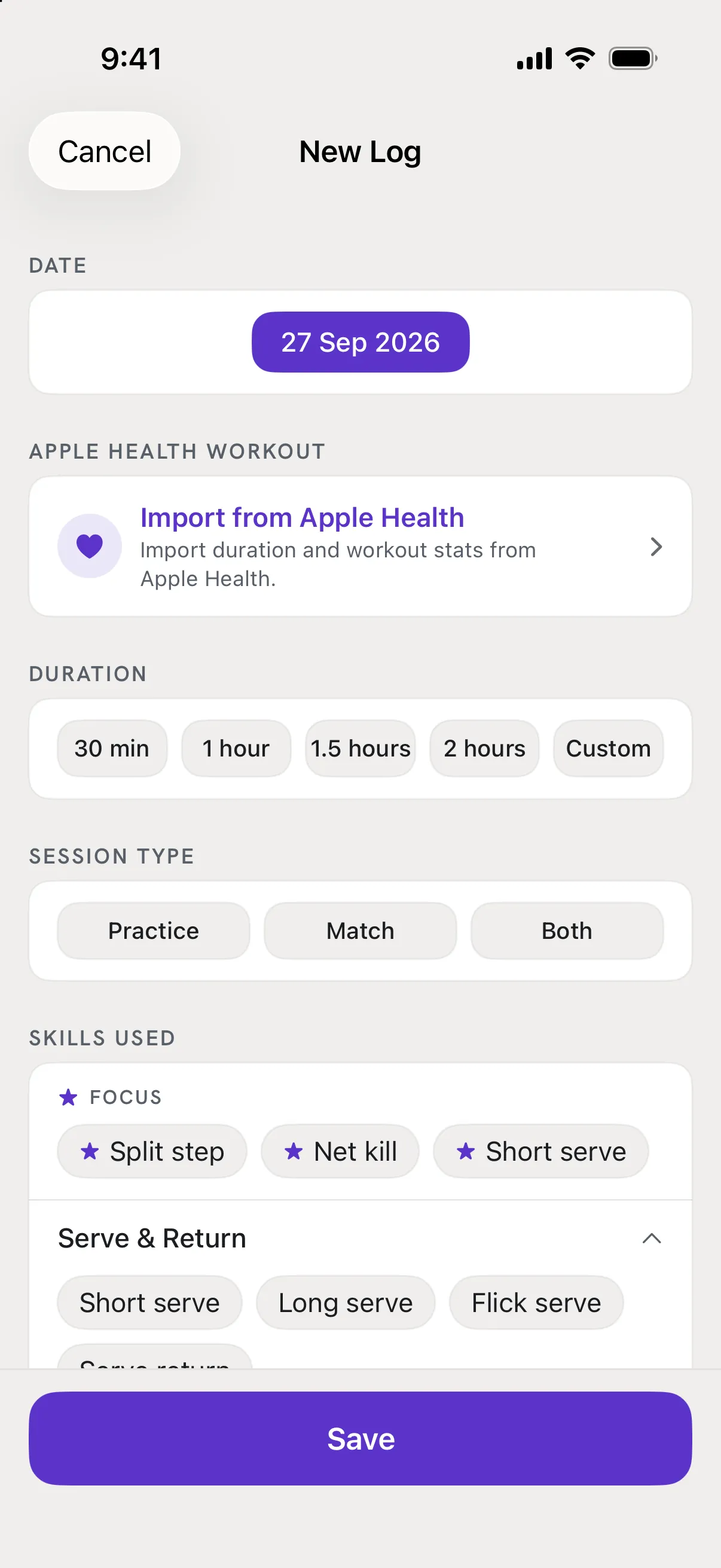
- +
- New Log. Date, type, duration, then anything else you want to keep: matches, skills used, a reflection, photos, an Apple Health workout.
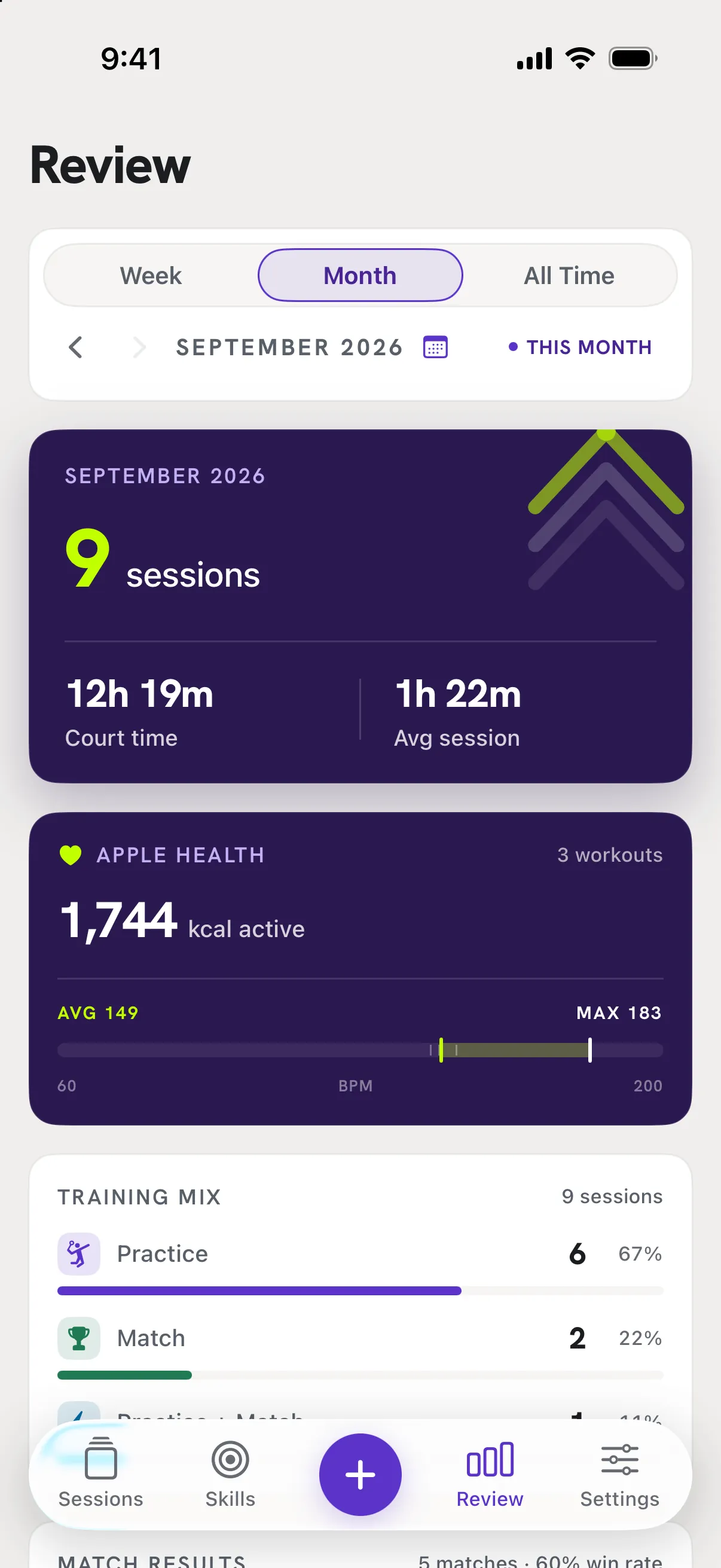
- Review
- Totals for this Week, Month or All Time: sessions, court time, Apple Health calories and heart rate, training mix, match results and the skills you trained most.
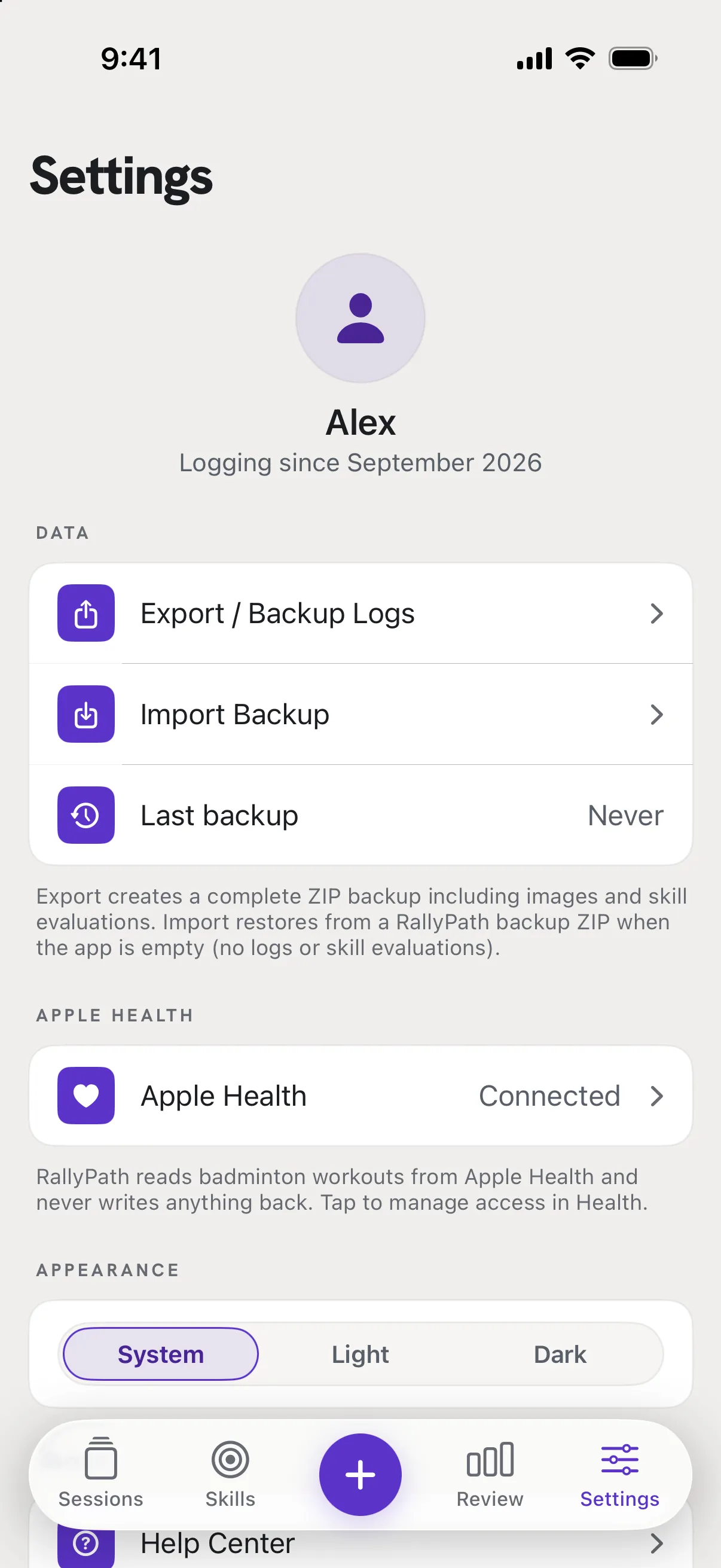
- Settings
- Backup and restore, Apple Health connection, appearance, Quick Start (opens the checklist; brings Coach back if you hid it, until all four steps are done), this Help Center, and the Delete All Data button at the very bottom.
- Coach
- On Sessions, Skills, Review, Settings and New Log you will also see Coach in the bottom-right corner. Tap it for Quick Start, a four-step checklist with a video for each step. You can hide Coach and bring it back from Settings › Quick Start, until all four steps are done. After that Coach stays away, but Settings › Quick Start still opens the checklist.